Migration guide

Moving your Carrot site to Apex Vivus, step by step.

Nine steps, each with the screen you will see and exactly where to click. Your Carrot site stays live the whole time, and nothing switches until Apex Vivus has checked your new site.

Before you start

Have these four things ready.

Your Apex Vivus siteBuilt and open in the app. The move goes into it.
Your Carrot loginTo download your leads. Your Carrot site must still be online.
Your domain loginAt the company you bought your domain from, like GoDaddy or Namecheap.
Google Search ConsoleIf you use it. If you don't, Apex Vivus sets it up for you.

Bought your domain through Carrot? Ask Carrot for access to its DNS settings, or move it to a domain company of your own, before step 8.

1

Scan your Carrot site

Apex Vivus reads your whole site: every page, blog post, picture and menu link, and what Google shows for each page. Nothing is changed yet.
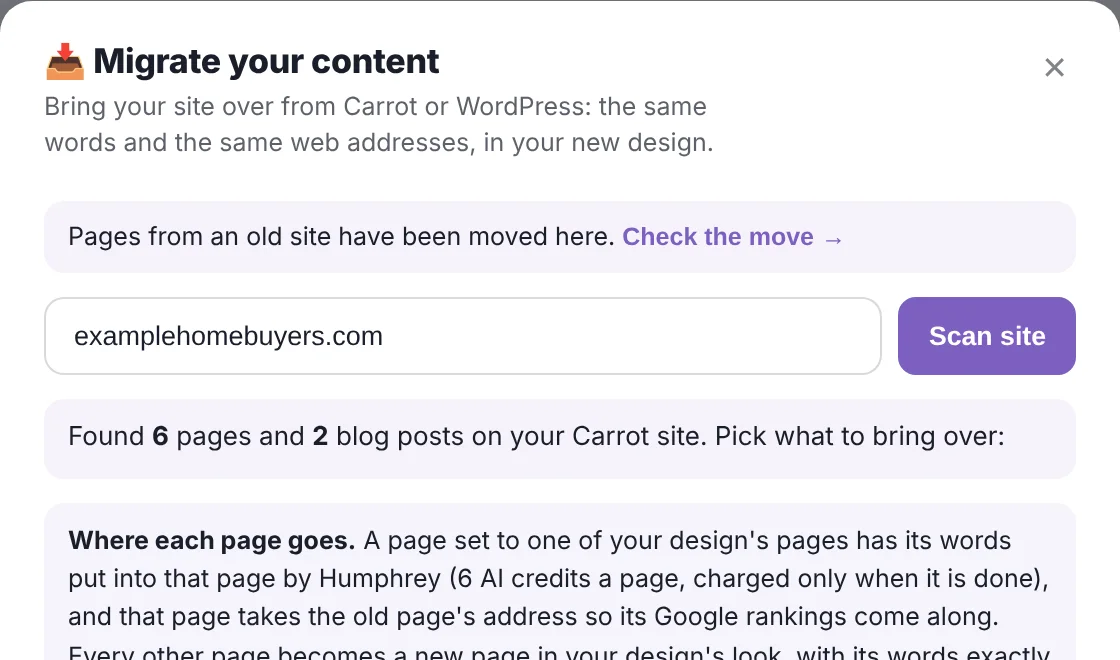
Where: In Apex Vivus, open Setup and press the Migrate Content card. Type your Carrot web address (for example yoursite.com) and press Scan site.
The Migrate your content window with a Carrot address typed in

It worked when you see "Found 6 pages and 2 blog posts on your Carrot site. Pick what to bring over:", with your numbers.

2

Choose where each page goes

Each old page is already matched with the page of your new site that says the same thing. That page takes your old web address, so its Google rankings come along. Pages with no match become new pages in your design.
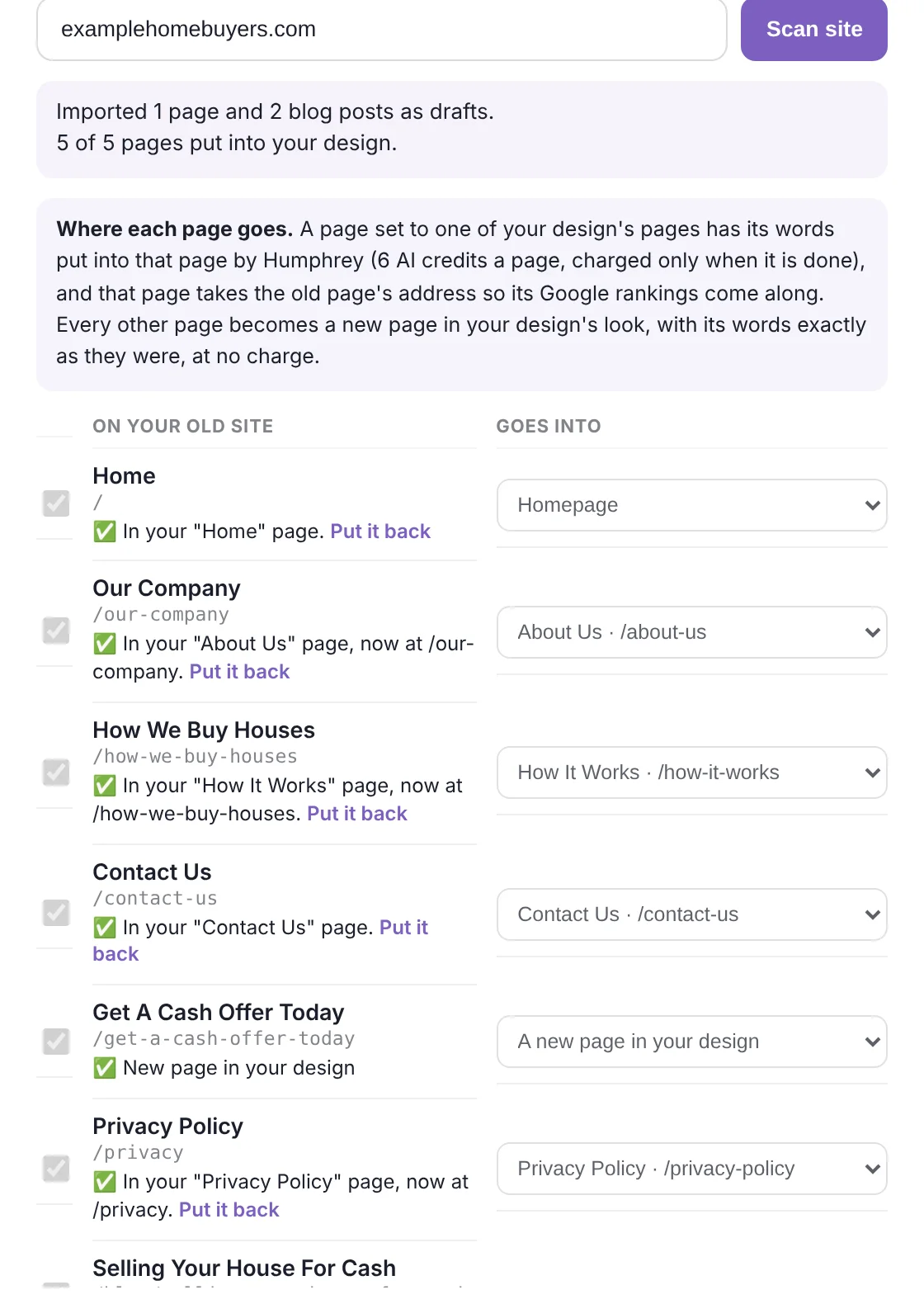
Where: Check the Goes into column and change any you like. Untick pages you don't want. Tick Publish to my live site now, then press Move pages at the bottom.
Every page moved, each with a green tick

It worked when every page has a green tick. Changed your mind about one? Press Put it back next to it.

Cost: a page Humphrey fits into one of your design's pages uses 6 AI credits (60¢). New pages and blog posts are free.

3

Export your leads from Carrot

Your leads live inside your Carrot account, so you download them there. Carrot keeps them per form: if your site has more than one form, do this once for each.

In CarrotContentFrom your site's Dashboard.
ThenForms → Import/ExportThe forms menu.
ThenExport EntriesPick the form your sellers fill in.
ThenTick all fieldsName, phone, email, address, notes.
FinallyDownload Export FileA .csv file lands in your Downloads.

It worked when you have one .csv file per form in your Downloads folder.

4

Bring your leads in

Apex Vivus reads the file first and shows you what it found. Nothing is saved until you press import, and nobody is texted or emailed.
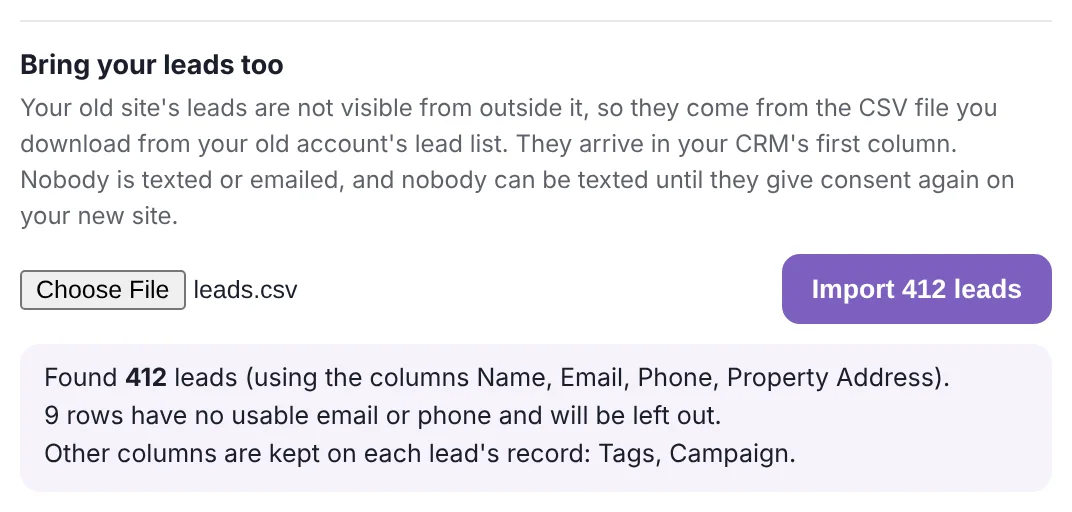
Where: In the same Migrate window, under Bring your leads too, press Choose File and pick the file. Check what it found, then press Import 412 leads (with your number). Repeat for each file.
The lead file read and ready to import

It worked when it says "Imported 412 leads into your CRM". Leads already in your CRM are not added twice, so importing a file again is safe.

6

Check every page and your form

Apex Vivus opens every new page the way a visitor would and compares it with your old page: the words, the Google title and description, the heading, the address and the pictures. Then you prove your form works.
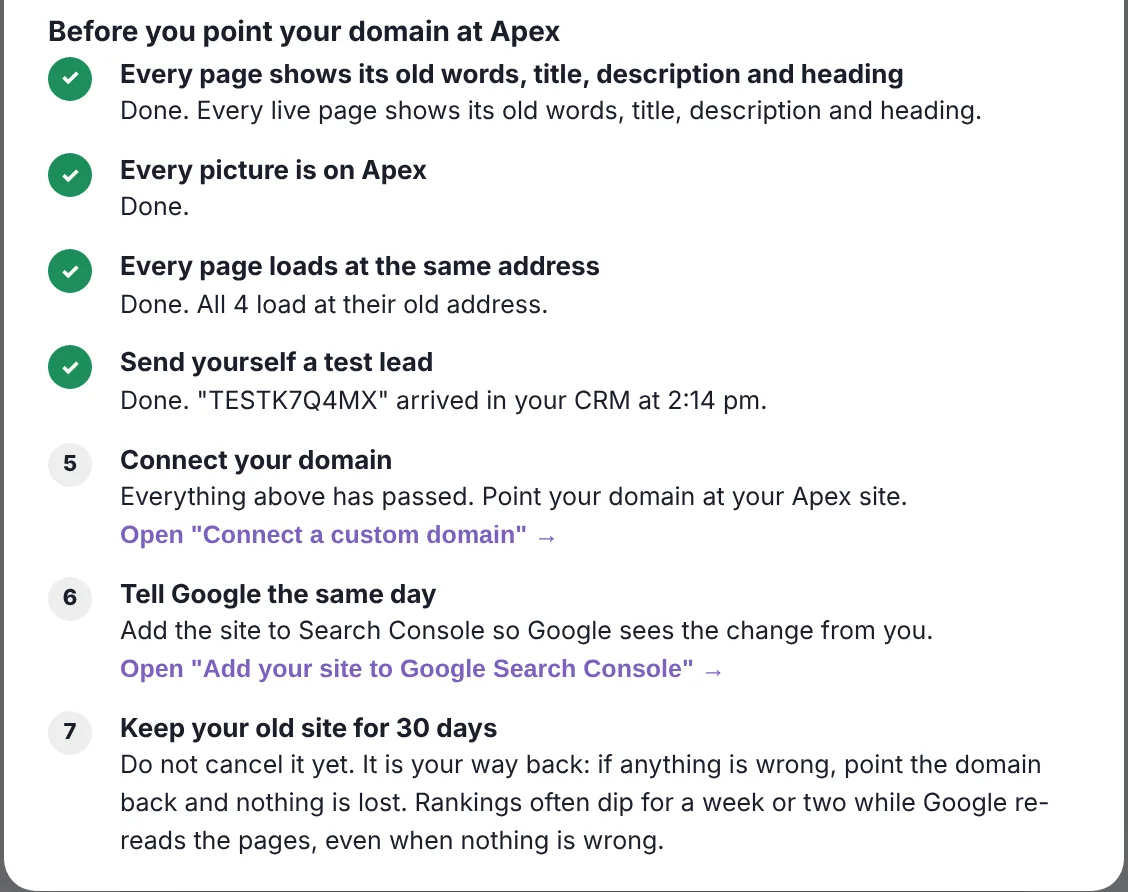
Where: In Check the move, press Check the live pages. Then press Get a test code, open your new site, fill in its form with the code as your name, add your own email or phone, send it, and press Check.
Every check passed

It worked when checks 1 to 4 under Before you point your domain at Apex each show a ✓. Then step 5, Connect your domain, opens.

7

Fix anything flagged

If a check is red, the page's row says what is wrong. Every message and its fix is in What each message means below. Fix it, then press Check again.

8

Connect your domain

One record at the company you bought your domain from points your web address at Apex Vivus instead of Carrot. Your email is not touched: leave every other record as it is.

Where: In Apex Vivus open Setup → Connect a custom domain (or press Open "Connect a custom domain" in Check the move) and type your domain under Your domain, just the name, no www. Then at your domain company, sign in, open the domain's DNS (or Manage DNS) and add this record. If it asks for a Host or Name, enter @. Delete any other A record on @, such as the one pointing at Carrot.
The record to set at your domain company
TypeHost / NameValue / Points toTTL
A@44.210.53.1731 Hour

Back in Apex Vivus, press Check & connect. It can take minutes or hours to spread; Apex Vivus keeps checking and ticks it off when your domain is live. If a record is wrong, it tells you which one.

9

Tell Google, then cancel Carrot

The same day your domain points at Apex Vivus, let Google know. Every page was checked and a test lead came through before the switch, so you can cancel Carrot right then. You never pay for both.

Where: Setup → Add your site to Google Search Console → press Check connection and follow what it shows.
Day 1Switch and tell GoogleDomain connected, Search Console done.
Same dayCancel CarrotYour new site is live and taking leads. Carrot is no longer doing anything for you.
Week 1 to 2Rankings may wobbleNormal while Google re-reads your pages at their same addresses.
After thatLeads keep coming inOn your own site, with every tool behind each lead.

Bought your domain through Carrot? Move it to a domain company of your own before you cancel, so it stays yours.

What each message means

A red message in Check the move, and how to fix it.

You seeNot published
It meansThe page came across as a draft, so the live site does not show it yet.
Do thisOpen Pages in the main menu, open the page and publish it. Or move it again with Publish to my live site now ticked.
You seeDid not load
It meansThe live page did not open when Apex Vivus tried it.
Do thisMake sure the page is published, wait a minute and press Check again. "(certificate)" means your site's security certificate is still being set up: try again in an hour.
You seeChanges
It meansThe page could not keep its old web address (another page already uses it).
Do thisNothing to do if the row says it forwards: visitors and Google going to the old address land on the new one. If it does not forward, press Check again.
You see2 old paragraphs missing
It meansSome of your old words are not on the new page.
Do thisOpen the page in the editor and add them back. Or press Put it back in the move window and choose A new page in your design for that page, which keeps every word.
You seeTitle differs / description differs
It meansWhat Google shows for the page is not what it showed before.
Do thisOpen the page in the editor, press the 📄 Page Settings button at the top, and in General paste the old words into SEO Title or Meta Description.
You seeHeading differs
It meansThe page's main heading is not the old one.
Do thisOpen the page in the editor and change the big heading at the top back to the old words.
You seeHidden from Google (noindex)
It meansThe page tells Google not to list it.
Do thisAsk Humphrey in the app to make the page visible to Google, or book a call and we will fix it with you.
You seeLinks to /how-it-works, which moved
It meansA menu link or button still points at an address a page has left.
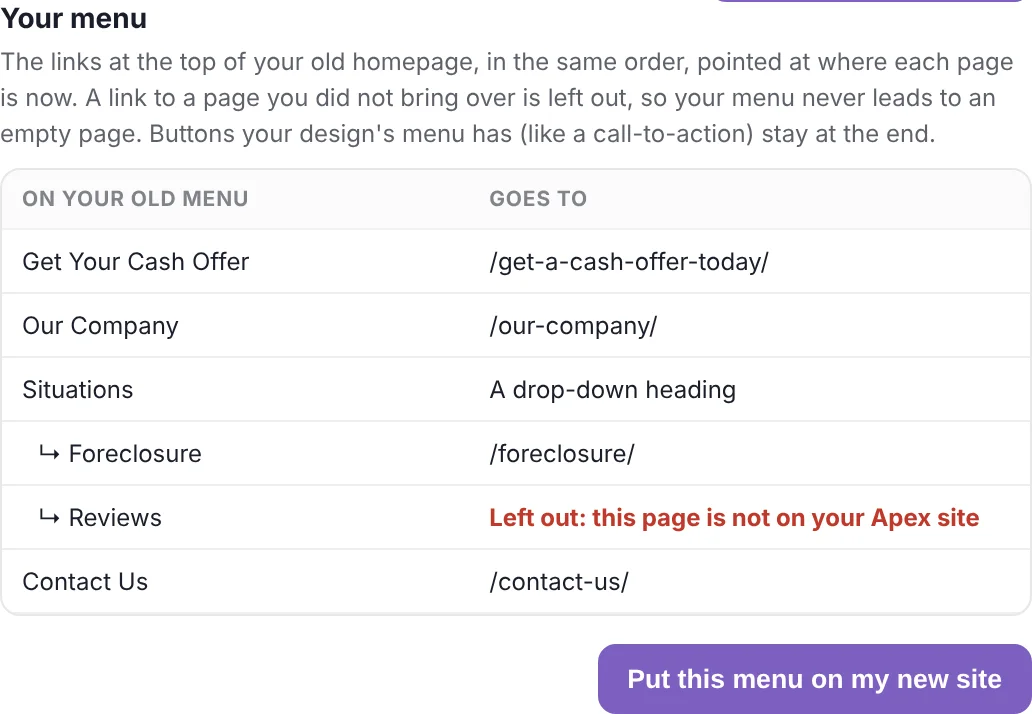
Do thisPress Put this menu on my new site in Check the move, or change that link in Site Manager → Navigation.
You see3 still load from your old site
It meansA picture could not be copied, so it still comes from your Carrot account and breaks when you cancel.
Do thisIn Check the move, press copy in that page's Pictures column. If it stays, replace that picture in the editor.
You seeNo lead with that code has reached your CRM yet
It meansThe test lead has not arrived.
Do thisCheck you typed the code exactly as your name, wait a minute and press Check again. If it still does not arrive, your form needs fixing before you switch: ask Humphrey or book a call.

Stuck on a step? You are not on your own.

Ask Humphrey in the app: he knows every step of the move. Or book a short call and we will do it with you.

Compare

Keep exploring